> ## Documentation Index
> Fetch the complete documentation index at: https://docs.opendot.ai/llms.txt
> Use this file to discover all available pages before exploring further.
# Browser Test
> Stream microphone audio through the saved agent architecture and inspect live voice turns.
Browser Test is the local loop for validating an agent identity before binding
it to hardware. The panel follows the selected agent architecture: Sandwich uses
the local runtime WebSocket, while Speech-to-speech uses native browser WebRTC
with OpenAI Realtime.
 ## What you see in the UI
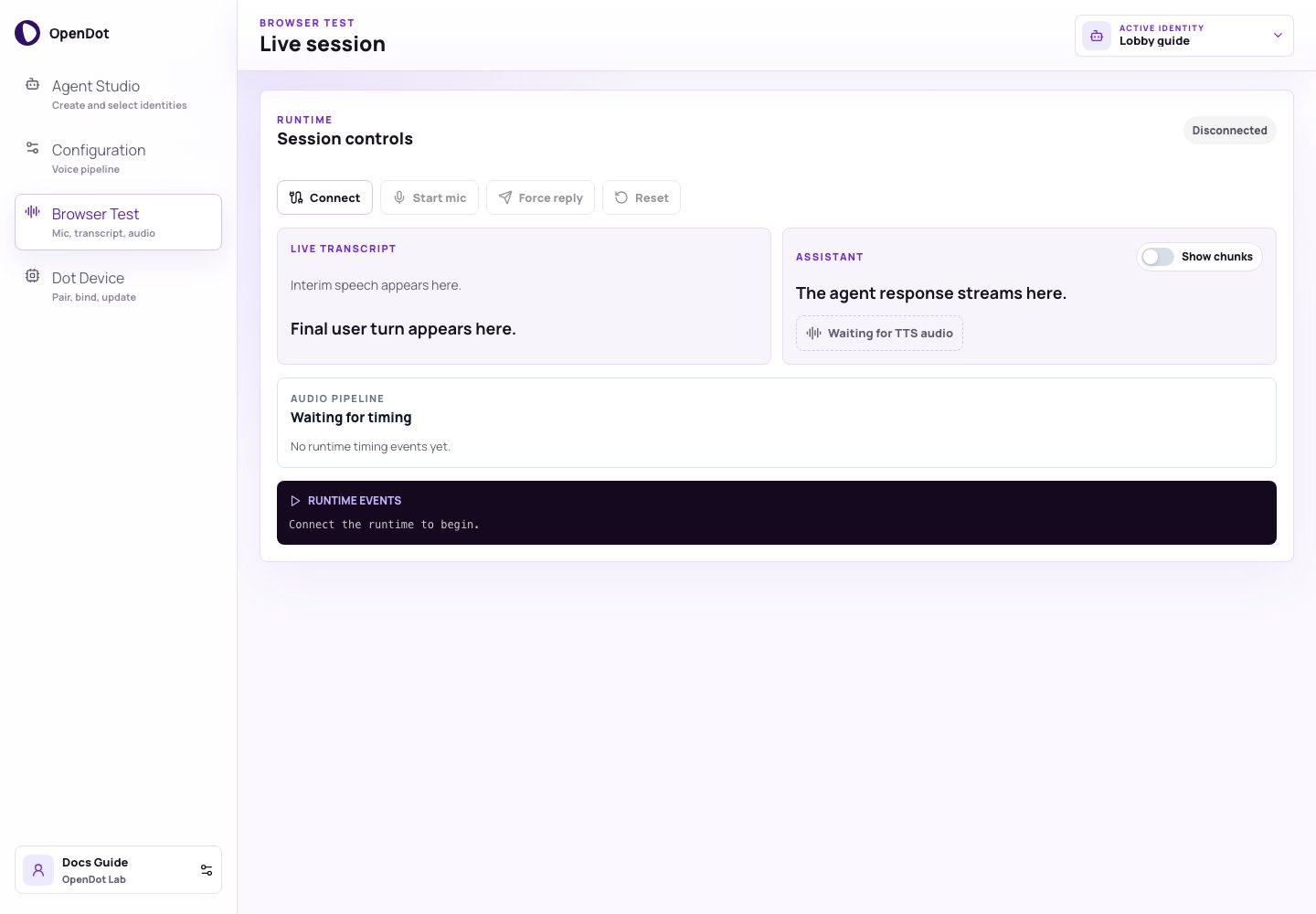
For Sandwich agents, Browser Test has four main areas:
* **Run this agent**: connection and microphone controls.
* **Live transcript / Assistant**: text and audio for the latest turn.
* **Audio pipeline**: timing spans for STT, LLM, and TTS work.
* **Runtime events**: connection, VAD, transcript, assistant, and error logs.
## Before you connect
Make sure the platform API, web console, and voice runtime are running:
```bash theme={null}
# terminal 1
pnpm run api
# terminal 2
pnpm run dev
# terminal 3
pnpm run runtime
```
The platform API and runtime load the root `.env`. Leave `POSTGRES_URI` empty for local defaults, and add provider keys there before testing live audio. The Docker Compose stack wires the local service hostnames for you.
## Run this agent
1. Select an identity in [Agent Studio](/agent-studio) or the page header.
2. Review its architecture and pipeline in [Configuration](/configuration).
3. Open **Browser Test**.
4. Click **Connect** to open an authenticated runtime WebSocket.
5. Click **Start mic**.
6. Speak naturally.
7. Click **Stop mic** and wait for VAD/STT to close the turn.
Use **Force reply** only when you want the runtime to respond to the current
final transcript without waiting for normal turn close. Use **Reset** to clear
the runtime conversation and local panel state.
For Speech-to-speech agents, set the architecture in **Configuration**, then
use **Connect**, **Start mic**, **Interrupt**, **Reset**, and **Disconnect** in
Browser Test. Reset closes the peer connection and clears the local transcript,
assistant, and event state.
## Live transcript and assistant output
The transcript card shows:
* interim speech from the STT stream
* final user turn text after speech finalization
The assistant card shows:
* clean assistant text
* optional XML-like response chunks
* generated TTS chunks and replay controls
* current audio playback or PCM stream status
When **Show chunks** is enabled, the panel maps assistant `` output to
the generated audio chunks, which makes TTS timing and chunk quality easier to
debug.
## Audio pipeline timeline
The timeline groups runtime spans into speech input, LLM, and speech output. It
helps answer whether a slow turn came from STT finalization, LLM generation,
TTS, or browser playback.
## Runtime event log
The runtime log captures connection state, Deepgram readiness, VAD events,
final transcripts, assistant text, generated audio chunks, resets, and errors.
Keep this log in bug reports when voice behavior changes.
## Runtime authorization
Before the socket opens, the console asks the platform API for a short-lived
voice-session token for the active identity. The runtime verifies that token
with the platform API and loads the authorized identity config from the API. If
you edit or switch identities while connected, the browser reconnects with a
newly minted token.
Speech-to-speech Browser Test uses a separate realtime browser-session token
from `POST /api/runtime/realtime-browser-sessions`. The browser sends that
one-use token to the runtime at `/realtime/client-secret`; the runtime verifies
it with the platform API, creates an OpenAI Realtime client secret using its own
`OPENAI_API_KEY`, and returns only the ephemeral client secret to the browser.
The runtime WebSocket defaults to:
```text theme={null}
ws://localhost:8787/voice
```
Override it with:
```bash theme={null}
VITE_RUNTIME_WS_URL=ws://localhost:8787/voice
```
## Common checks
* If the page does not load agent data, confirm `pnpm run api` is still running and Postgres is reachable.
* If **Connect** fails, confirm `pnpm run api`, `pnpm run runtime`, and `OPENDOT_RUNTIME_INTERNAL_SECRET` are aligned.
* If the mic does not start, check browser microphone permissions.
* If text appears but audio does not play, review the TTS encoding and browser delivery settings.
* If turns close too quickly, tune VAD endpointing in **Configuration**.
* If Speech-to-speech connect fails, confirm `OPENAI_API_KEY` is set on the runtime and `OPENDOT_RUNTIME_PUBLIC_HTTP_URL` points to it.
## What you see in the UI
For Sandwich agents, Browser Test has four main areas:
* **Run this agent**: connection and microphone controls.
* **Live transcript / Assistant**: text and audio for the latest turn.
* **Audio pipeline**: timing spans for STT, LLM, and TTS work.
* **Runtime events**: connection, VAD, transcript, assistant, and error logs.
## Before you connect
Make sure the platform API, web console, and voice runtime are running:
```bash theme={null}
# terminal 1
pnpm run api
# terminal 2
pnpm run dev
# terminal 3
pnpm run runtime
```
The platform API and runtime load the root `.env`. Leave `POSTGRES_URI` empty for local defaults, and add provider keys there before testing live audio. The Docker Compose stack wires the local service hostnames for you.
## Run this agent
1. Select an identity in [Agent Studio](/agent-studio) or the page header.
2. Review its architecture and pipeline in [Configuration](/configuration).
3. Open **Browser Test**.
4. Click **Connect** to open an authenticated runtime WebSocket.
5. Click **Start mic**.
6. Speak naturally.
7. Click **Stop mic** and wait for VAD/STT to close the turn.
Use **Force reply** only when you want the runtime to respond to the current
final transcript without waiting for normal turn close. Use **Reset** to clear
the runtime conversation and local panel state.
For Speech-to-speech agents, set the architecture in **Configuration**, then
use **Connect**, **Start mic**, **Interrupt**, **Reset**, and **Disconnect** in
Browser Test. Reset closes the peer connection and clears the local transcript,
assistant, and event state.
## Live transcript and assistant output
The transcript card shows:
* interim speech from the STT stream
* final user turn text after speech finalization
The assistant card shows:
* clean assistant text
* optional XML-like response chunks
* generated TTS chunks and replay controls
* current audio playback or PCM stream status
When **Show chunks** is enabled, the panel maps assistant `` output to
the generated audio chunks, which makes TTS timing and chunk quality easier to
debug.
## Audio pipeline timeline
The timeline groups runtime spans into speech input, LLM, and speech output. It
helps answer whether a slow turn came from STT finalization, LLM generation,
TTS, or browser playback.
## Runtime event log
The runtime log captures connection state, Deepgram readiness, VAD events,
final transcripts, assistant text, generated audio chunks, resets, and errors.
Keep this log in bug reports when voice behavior changes.
## Runtime authorization
Before the socket opens, the console asks the platform API for a short-lived
voice-session token for the active identity. The runtime verifies that token
with the platform API and loads the authorized identity config from the API. If
you edit or switch identities while connected, the browser reconnects with a
newly minted token.
Speech-to-speech Browser Test uses a separate realtime browser-session token
from `POST /api/runtime/realtime-browser-sessions`. The browser sends that
one-use token to the runtime at `/realtime/client-secret`; the runtime verifies
it with the platform API, creates an OpenAI Realtime client secret using its own
`OPENAI_API_KEY`, and returns only the ephemeral client secret to the browser.
The runtime WebSocket defaults to:
```text theme={null}
ws://localhost:8787/voice
```
Override it with:
```bash theme={null}
VITE_RUNTIME_WS_URL=ws://localhost:8787/voice
```
## Common checks
* If the page does not load agent data, confirm `pnpm run api` is still running and Postgres is reachable.
* If **Connect** fails, confirm `pnpm run api`, `pnpm run runtime`, and `OPENDOT_RUNTIME_INTERNAL_SECRET` are aligned.
* If the mic does not start, check browser microphone permissions.
* If text appears but audio does not play, review the TTS encoding and browser delivery settings.
* If turns close too quickly, tune VAD endpointing in **Configuration**.
* If Speech-to-speech connect fails, confirm `OPENAI_API_KEY` is set on the runtime and `OPENDOT_RUNTIME_PUBLIC_HTTP_URL` points to it.