> ## Documentation Index
> Fetch the complete documentation index at: https://docs.opendot.ai/llms.txt
> Use this file to discover all available pages before exploring further.
# Dot Device console
> Pair devices, check runtime availability, and bind voice configs.
Dot Device manages the hardware side of the prototype. It keeps an API-owned
inventory of paired devices, claims devices with spoken codes, and binds the
active agent identity config.
 For firmware and hardware details behind this console workflow, see
[Dot device](/device-firmware-hardware).
## What you see in the UI
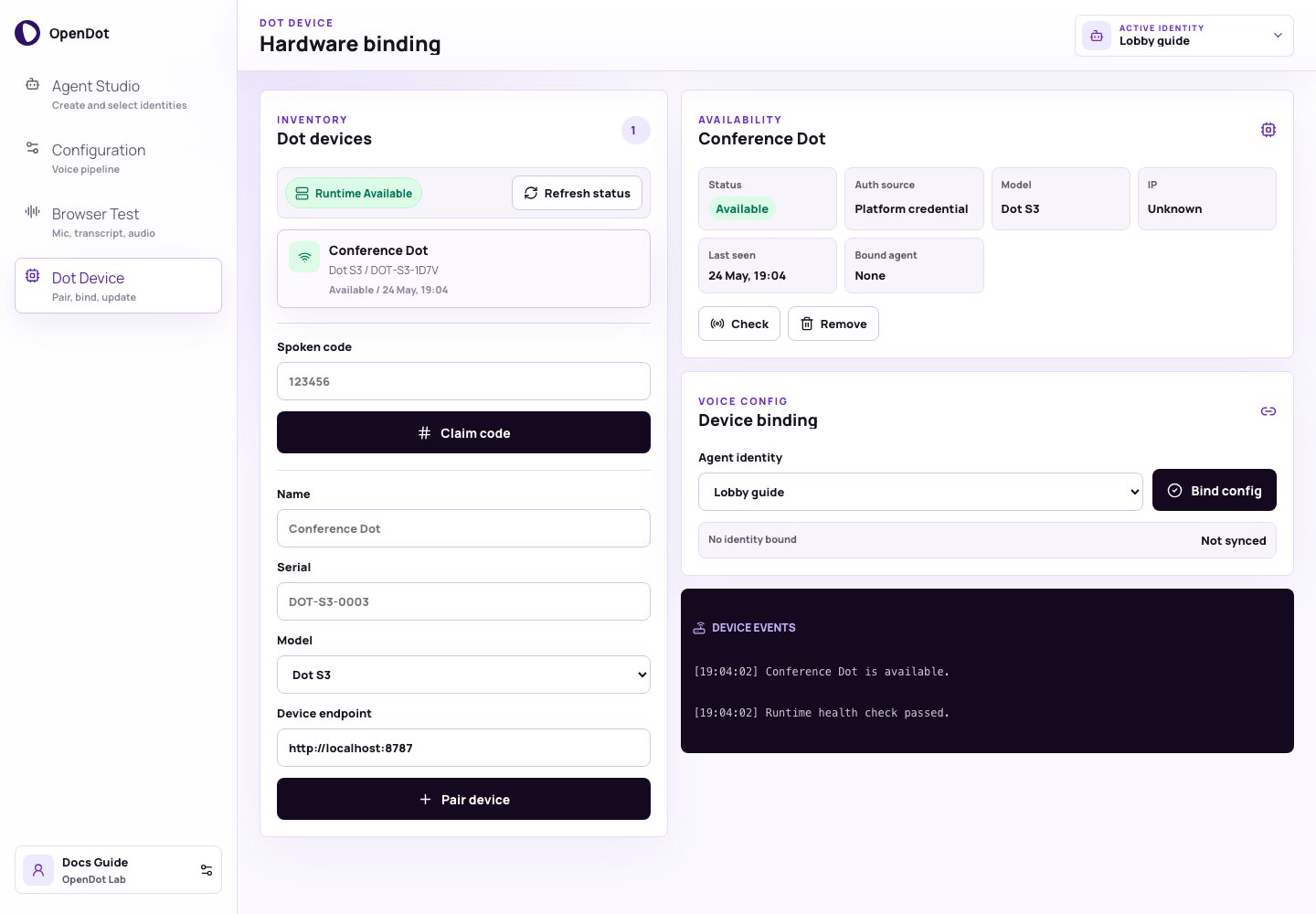
Dot Device has four main areas:
* **Inventory**: lists paired devices, runtime status, spoken-code claim, and manual pairing.
* **Availability**: shows selected device status and metadata.
* **Voice Config / Device events**: binds an identity config and records device actions.
## Runtime status
The Inventory panel checks the runtime health endpoint. By default it uses:
```text theme={null}
http://localhost:8787
```
The page derives that URL from `VITE_RUNTIME_HTTP_URL` or `VITE_RUNTIME_WS_URL`.
Click **Refresh status** to check runtime health and each paired device
endpoint.
## Inventory
The inventory list shows each paired device name, model, serial number,
availability, and last seen time. Selecting a device updates the Availability
and Voice Config panels.
## Spoken-code pairing
For firmware devices, use spoken-code pairing from the **Spoken code** form:
1. Point the device OTA URL at the OpenDot runtime `/ota/` endpoint.
2. Let the device speak the activation code.
3. Enter that code in **Spoken code** and click **Claim code**.
The platform API binds the claimed device to your account and activates the token the device already stored from OTA.
## Manual pairing
For manual experiments, add a device with:
* **Name**
* **Serial**
* **Model**
* **Device endpoint**
For local demos, `demo://custom-dot` is enough.
## Availability
The Availability panel shows the selected device status, auth source, model, IP,
last seen time, and bound identity. Use **Check** to probe only the selected device
or **Remove** to delete it from the platform inventory.
Availability values:
* **Available**: runtime or endpoint responded.
* **Offline**: runtime or endpoint did not respond.
* **Unknown**: device has not been checked yet.
## Voice Config
1. Select a device.
2. Select an agent identity in **Voice Config**.
3. Click **Bind config**.
OpenDot stores the binding in the platform API. The runtime applies the bound
identity config after the device connects with a valid device token.
Bindings are stored as deployment and deployment-device-target records, so a
device points at a versioned agent and pipeline config rather than browser-only
state.
The bound agent architecture controls the live `/ws` turn path. Sandwich agents
use the explicit Deepgram VAD/STT, configured LLM, and TTS stages.
Speech-to-speech agents keep the same firmware protocol, but the runtime bridges
device Opus audio to OpenAI Realtime and streams Opus playback back to the
speaker.
## Device events
The event log records pairing, runtime checks, device checks, binding attempts,
and binding results. Include it with serial logs when debugging firmware or
runtime device behavior.
For firmware and hardware details behind this console workflow, see
[Dot device](/device-firmware-hardware).
## What you see in the UI
Dot Device has four main areas:
* **Inventory**: lists paired devices, runtime status, spoken-code claim, and manual pairing.
* **Availability**: shows selected device status and metadata.
* **Voice Config / Device events**: binds an identity config and records device actions.
## Runtime status
The Inventory panel checks the runtime health endpoint. By default it uses:
```text theme={null}
http://localhost:8787
```
The page derives that URL from `VITE_RUNTIME_HTTP_URL` or `VITE_RUNTIME_WS_URL`.
Click **Refresh status** to check runtime health and each paired device
endpoint.
## Inventory
The inventory list shows each paired device name, model, serial number,
availability, and last seen time. Selecting a device updates the Availability
and Voice Config panels.
## Spoken-code pairing
For firmware devices, use spoken-code pairing from the **Spoken code** form:
1. Point the device OTA URL at the OpenDot runtime `/ota/` endpoint.
2. Let the device speak the activation code.
3. Enter that code in **Spoken code** and click **Claim code**.
The platform API binds the claimed device to your account and activates the token the device already stored from OTA.
## Manual pairing
For manual experiments, add a device with:
* **Name**
* **Serial**
* **Model**
* **Device endpoint**
For local demos, `demo://custom-dot` is enough.
## Availability
The Availability panel shows the selected device status, auth source, model, IP,
last seen time, and bound identity. Use **Check** to probe only the selected device
or **Remove** to delete it from the platform inventory.
Availability values:
* **Available**: runtime or endpoint responded.
* **Offline**: runtime or endpoint did not respond.
* **Unknown**: device has not been checked yet.
## Voice Config
1. Select a device.
2. Select an agent identity in **Voice Config**.
3. Click **Bind config**.
OpenDot stores the binding in the platform API. The runtime applies the bound
identity config after the device connects with a valid device token.
Bindings are stored as deployment and deployment-device-target records, so a
device points at a versioned agent and pipeline config rather than browser-only
state.
The bound agent architecture controls the live `/ws` turn path. Sandwich agents
use the explicit Deepgram VAD/STT, configured LLM, and TTS stages.
Speech-to-speech agents keep the same firmware protocol, but the runtime bridges
device Opus audio to OpenAI Realtime and streams Opus playback back to the
speaker.
## Device events
The event log records pairing, runtime checks, device checks, binding attempts,
and binding results. Include it with serial logs when debugging firmware or
runtime device behavior.