> ## Documentation Index
> Fetch the complete documentation index at: https://docs.opendot.ai/llms.txt
> Use this file to discover all available pages before exploring further.
# Login and signup
> Understand the OpenDot auth screen, local credentials, Supabase Auth, login, and account creation.
Login and signup are the first console screens when authentication is required.
The UI is the same in local and hosted modes, but the credential backend changes
based on environment configuration.
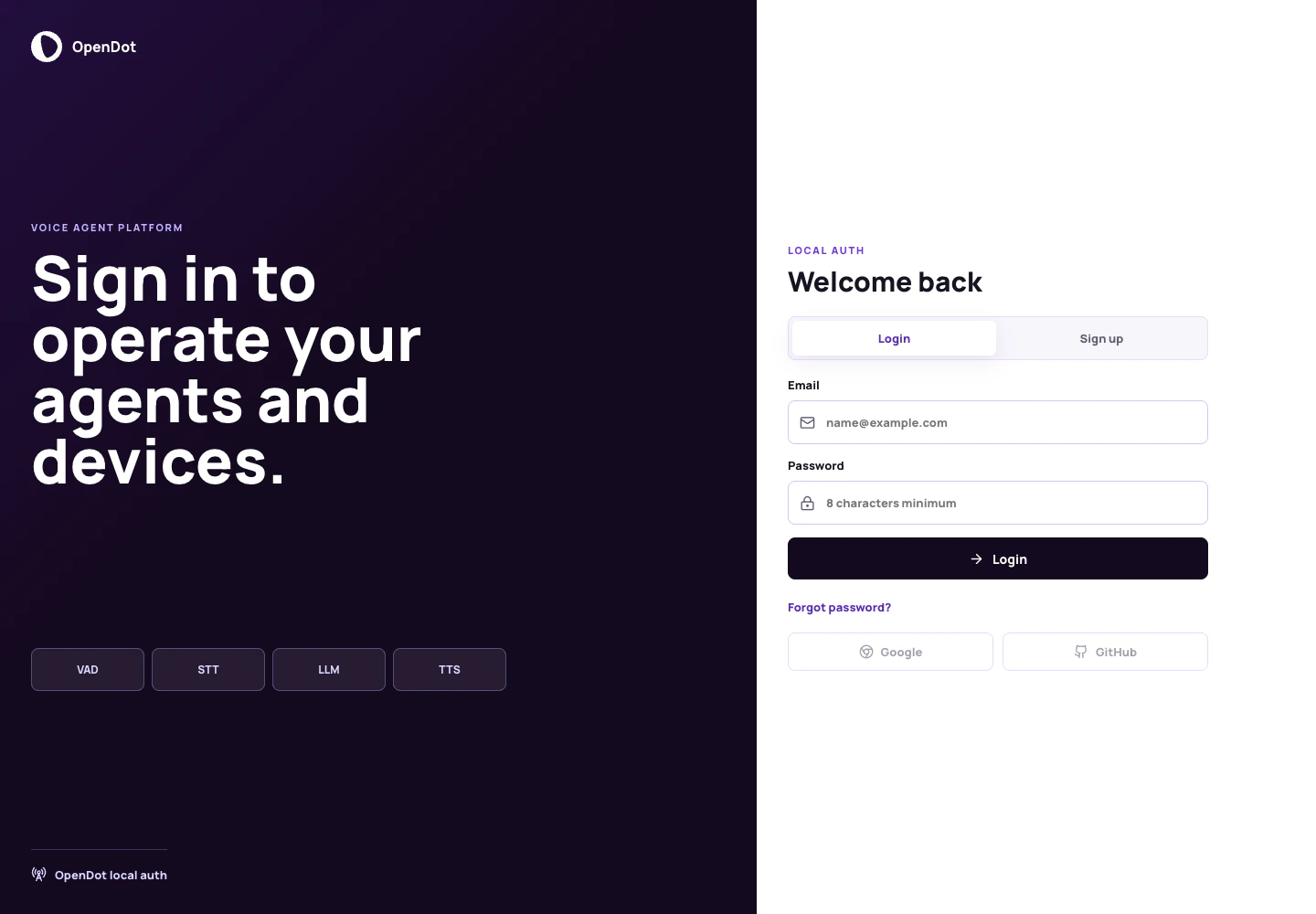 ## What you see in the UI
The auth page has two sides:
* **Brand panel**: shows OpenDot, the VAD/STT/LLM/TTS signal strip, and the
active auth provider label.
* **Form panel**: switches between **Login** and **Sign up** tabs.
The form shows:
* **Name** on signup only
* **Email**
* **Password**
* **Login** or **Create account** submit button
* **Forgot password?** notice button
* disabled Google and GitHub OAuth buttons
Forgot password, Google OAuth, and GitHub OAuth are visible as future UI
affordances, but they are not wired yet.
## Local credentials mode
Local auth is the default for local Compose and self-hosted development when
Supabase browser variables are empty:
```bash theme={null}
OPENDOT_LOCAL_AUTH_DISABLED=false
PLATFORM_AUTH_REQUIRED=true
VITE_SUPABASE_URL=
VITE_SUPABASE_ANON_KEY=
```
In this mode, signup sends email, password, and optional display name to the
OpenDot platform API. The API creates:
* an `app_users` row
* a `local_auth_credentials` row with a hashed password
* default `user_preferences`
* a signed local OpenDot session token
The browser stores the local session in local storage and sends it to the
platform API as a Bearer token. On reload, the console verifies the saved session
with `/api/auth/session`. If verification fails, the saved local session is
cleared.
Passwords are never stored as plaintext. Change `OPENDOT_SESSION_SECRET` before
using local auth on a shared or public deployment.
## Supabase Auth mode
Supabase Auth is used when the browser has Supabase configuration:
```bash theme={null}
SUPABASE_URL=https://.supabase.co
VITE_SUPABASE_URL=https://.supabase.co
VITE_SUPABASE_ANON_KEY=
PLATFORM_AUTH_REQUIRED=true
OPENDOT_LOCAL_AUTH_DISABLED=true
```
In this mode, signup and login happen through Supabase in the browser. The
browser receives a Supabase access token and sends that token to the OpenDot API
as a Bearer token. The API verifies the Supabase JWT, maps `auth.users.id` to
`app_users.id`, and keeps OpenDot product state in OpenDot-owned tables.
For preview projects where signup should immediately enter the console, disable
email confirmations in Supabase Auth settings. If confirmations are enabled,
Supabase may not return a session during signup; the user must confirm the email
and then log in.
## Login
Use **Login** for an existing account:
1. Enter email.
2. Enter password.
3. Click **Login**.
Local mode checks the password against `local_auth_credentials` and returns a
local OpenDot session token. Supabase mode calls Supabase email/password sign-in
and returns a Supabase session token.
## Sign up
Use **Sign up** for a new account:
1. Enter display name.
2. Enter email.
3. Enter a password with at least 8 characters.
4. Click **Create account**.
After signup succeeds, the console enters the workspace and loads platform
state. The next screen in the workflow is [Agent Studio](/agent-studio).
## Related reference
Use [Authentication](/authentication) for the deployment-oriented auth settings
and the OpenDot app-user boundary.
## What you see in the UI
The auth page has two sides:
* **Brand panel**: shows OpenDot, the VAD/STT/LLM/TTS signal strip, and the
active auth provider label.
* **Form panel**: switches between **Login** and **Sign up** tabs.
The form shows:
* **Name** on signup only
* **Email**
* **Password**
* **Login** or **Create account** submit button
* **Forgot password?** notice button
* disabled Google and GitHub OAuth buttons
Forgot password, Google OAuth, and GitHub OAuth are visible as future UI
affordances, but they are not wired yet.
## Local credentials mode
Local auth is the default for local Compose and self-hosted development when
Supabase browser variables are empty:
```bash theme={null}
OPENDOT_LOCAL_AUTH_DISABLED=false
PLATFORM_AUTH_REQUIRED=true
VITE_SUPABASE_URL=
VITE_SUPABASE_ANON_KEY=
```
In this mode, signup sends email, password, and optional display name to the
OpenDot platform API. The API creates:
* an `app_users` row
* a `local_auth_credentials` row with a hashed password
* default `user_preferences`
* a signed local OpenDot session token
The browser stores the local session in local storage and sends it to the
platform API as a Bearer token. On reload, the console verifies the saved session
with `/api/auth/session`. If verification fails, the saved local session is
cleared.
Passwords are never stored as plaintext. Change `OPENDOT_SESSION_SECRET` before
using local auth on a shared or public deployment.
## Supabase Auth mode
Supabase Auth is used when the browser has Supabase configuration:
```bash theme={null}
SUPABASE_URL=https://.supabase.co
VITE_SUPABASE_URL=https://.supabase.co
VITE_SUPABASE_ANON_KEY=
PLATFORM_AUTH_REQUIRED=true
OPENDOT_LOCAL_AUTH_DISABLED=true
```
In this mode, signup and login happen through Supabase in the browser. The
browser receives a Supabase access token and sends that token to the OpenDot API
as a Bearer token. The API verifies the Supabase JWT, maps `auth.users.id` to
`app_users.id`, and keeps OpenDot product state in OpenDot-owned tables.
For preview projects where signup should immediately enter the console, disable
email confirmations in Supabase Auth settings. If confirmations are enabled,
Supabase may not return a session during signup; the user must confirm the email
and then log in.
## Login
Use **Login** for an existing account:
1. Enter email.
2. Enter password.
3. Click **Login**.
Local mode checks the password against `local_auth_credentials` and returns a
local OpenDot session token. Supabase mode calls Supabase email/password sign-in
and returns a Supabase session token.
## Sign up
Use **Sign up** for a new account:
1. Enter display name.
2. Enter email.
3. Enter a password with at least 8 characters.
4. Click **Create account**.
After signup succeeds, the console enters the workspace and loads platform
state. The next screen in the workflow is [Agent Studio](/agent-studio).
## Related reference
Use [Authentication](/authentication) for the deployment-oriented auth settings
and the OpenDot app-user boundary.