

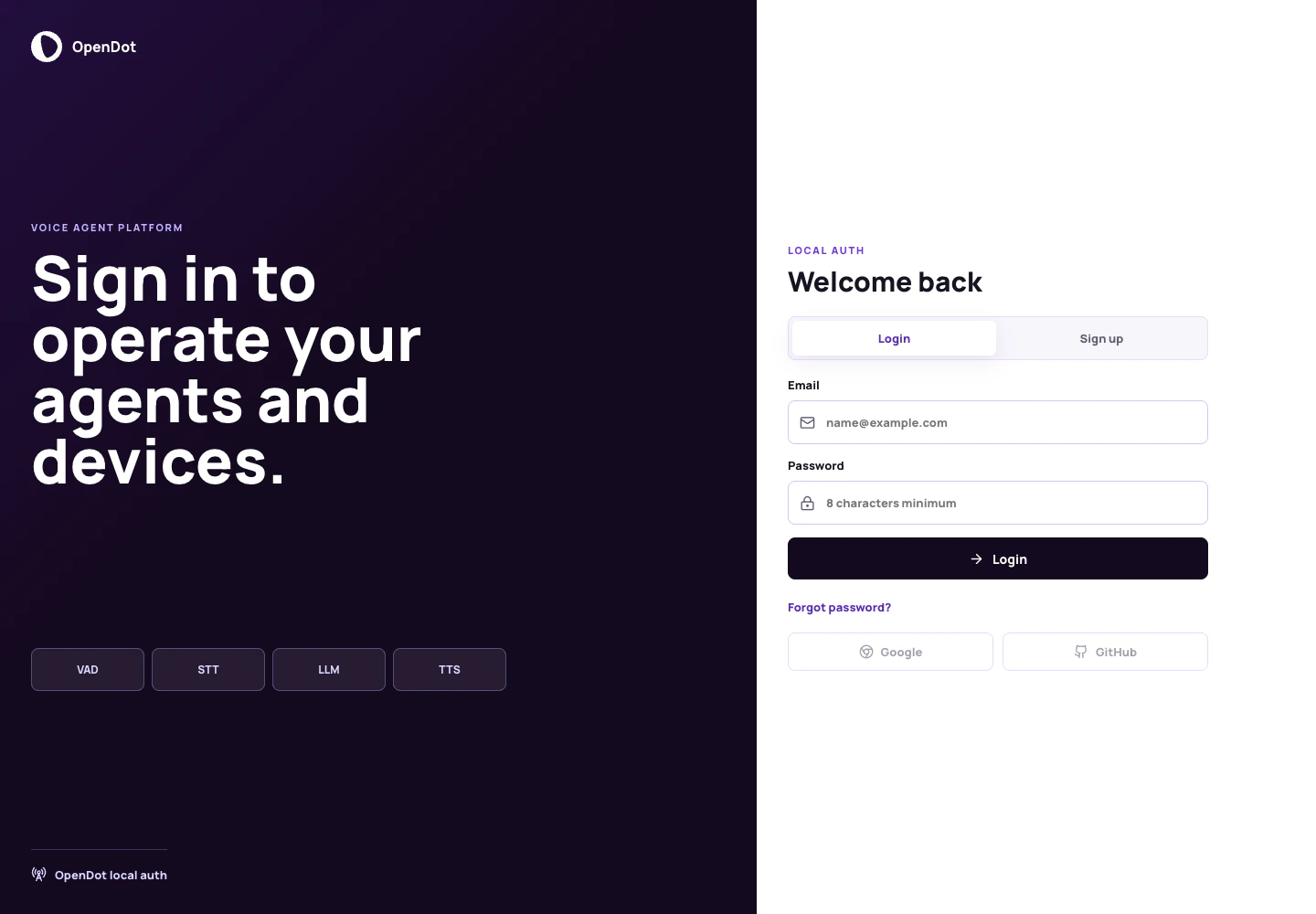
The first console screen switches between Login and Sign up while showing the active auth provider.
What you see in the UI
The auth page has two sides:- Brand panel: shows OpenDot, the VAD/STT/LLM/TTS signal strip, and the active auth provider label.
- Form panel: switches between Login and Sign up tabs.
- Name on signup only
- Password
- Login or Create account submit button
- Forgot password? notice button
- disabled Google and GitHub OAuth buttons
Local credentials mode
Local auth is the default for local Compose and self-hosted development when Supabase browser variables are empty:- an
app_usersrow - a
local_auth_credentialsrow with a hashed password - default
user_preferences - a signed local OpenDot session token
/api/auth/session. If verification fails, the saved local session is
cleared.
Passwords are never stored as plaintext. Change OPENDOT_SESSION_SECRET before
using local auth on a shared or public deployment.
Supabase Auth mode
Supabase Auth is used when the browser has Supabase configuration:auth.users.id to
app_users.id, and keeps OpenDot product state in OpenDot-owned tables.
For preview projects where signup should immediately enter the console, disable
email confirmations in Supabase Auth settings. If confirmations are enabled,
Supabase may not return a session during signup; the user must confirm the email
and then log in.
Login
Use Login for an existing account:- Enter email.
- Enter password.
- Click Login.
local_auth_credentials and returns a
local OpenDot session token. Supabase mode calls Supabase email/password sign-in
and returns a Supabase session token.
Sign up
Use Sign up for a new account:- Enter display name.
- Enter email.
- Enter a password with at least 8 characters.
- Click Create account.